 MileCerta
How MileCerta keeps your mileage log
A short walkthrough of the five things that happen between starting your car and handing over a report, plus how to keep detection reliable.
Step 1
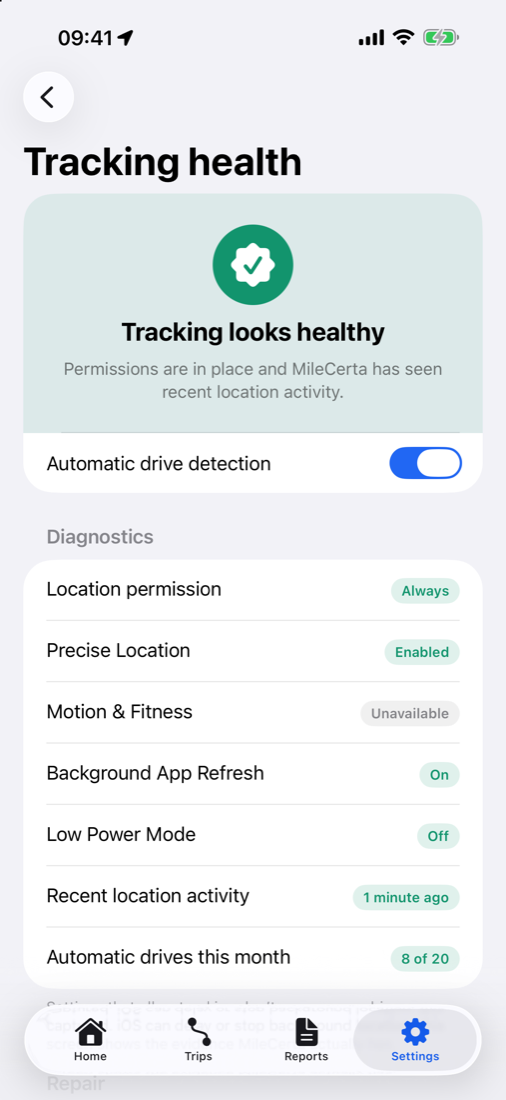
Allow the right permissions
On first launch, MileCerta asks for the permissions automatic detection needs. You can change any of them later.
- Location: Always, so drives are recorded while the app is in the background
- Precise Location: on, so distances are accurate
- Motion & Fitness, which helps tell a drive from a walk
- Notifications (optional), for the daily review reminder
Prefer not to? Manual logging works without any permissions.
Step 2
Drive as usual
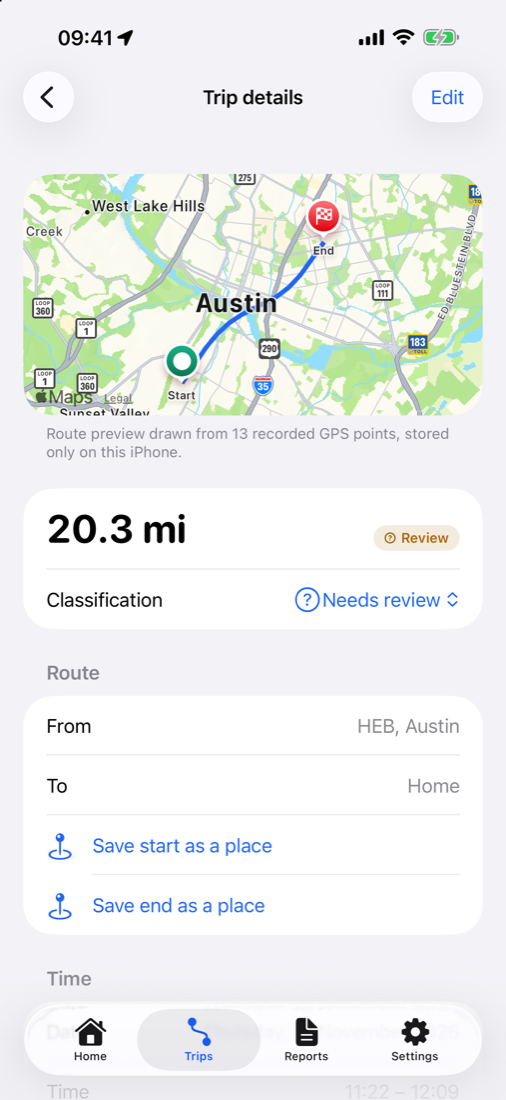
When motion and location show you’re driving, MileCerta starts a trip. When you stop, it saves the start and end points, times, distance and a simplified route preview.
- Each automatic trip gets a capture confidence: high, medium or low
- Low confidence usually means weak GPS or a restricted setting, so check those trips first
- Missed a drive? Add it manually
Step 3
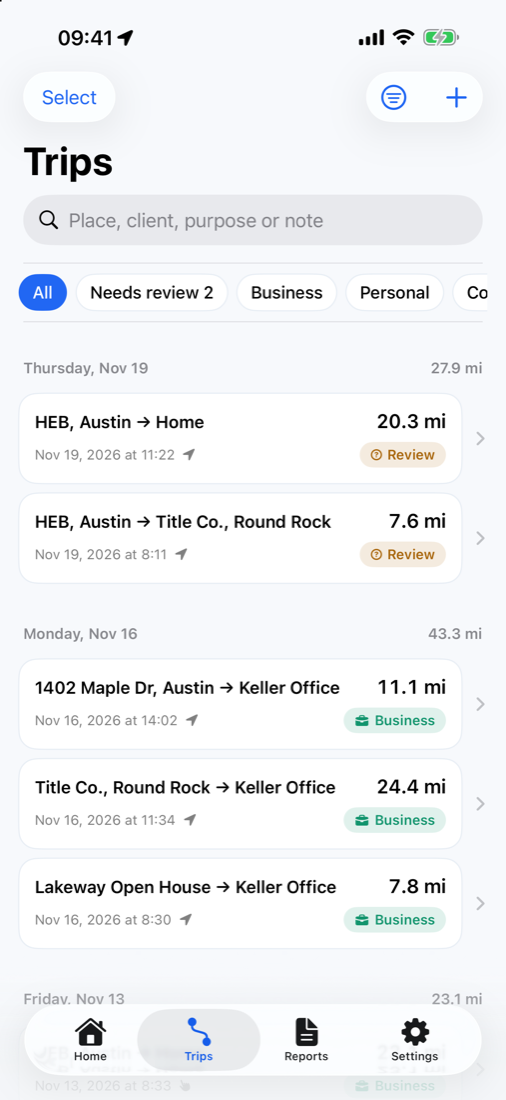
Review your trip inbox
New drives wait in the inbox. Swipe right for Business; swipe left for Personal or Commute; or open a trip to choose Other.
- Add the business purpose and client: the IRS expects a purpose for every business trip
- Add parking and tolls you paid on business trips
- A daily reminder (optional) prompts you to clear the inbox while the day is fresh
Step 4
Let rules handle repeat drives
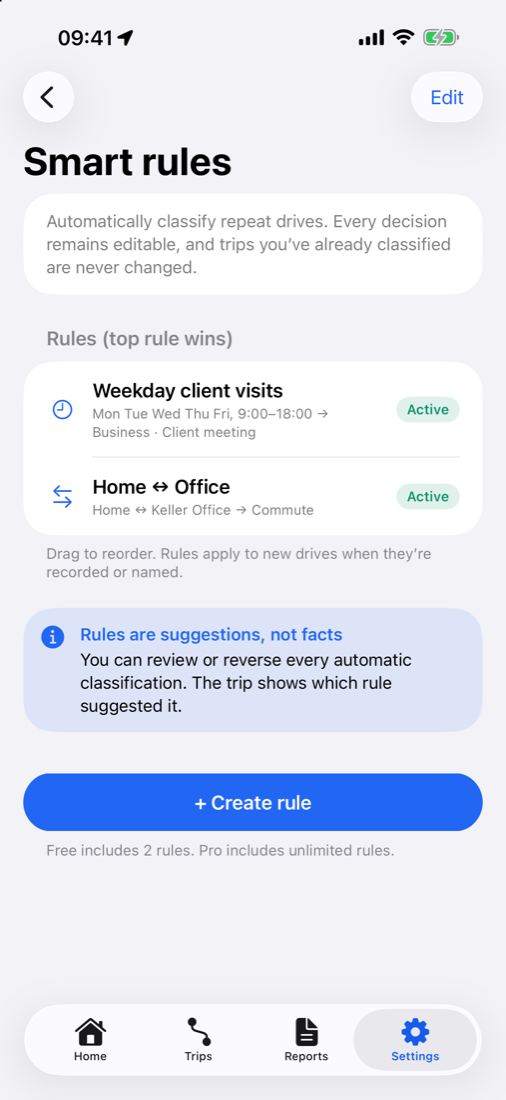
Create a rule from work hours, a route or a saved place. Rules run on new drives in order, and the first match wins.
- Rules never change trips you’ve already classified
- Every trip shows which rule classified it, and you can change it
- 2 rules on Free, unlimited on Pro
Step 5
Export your report
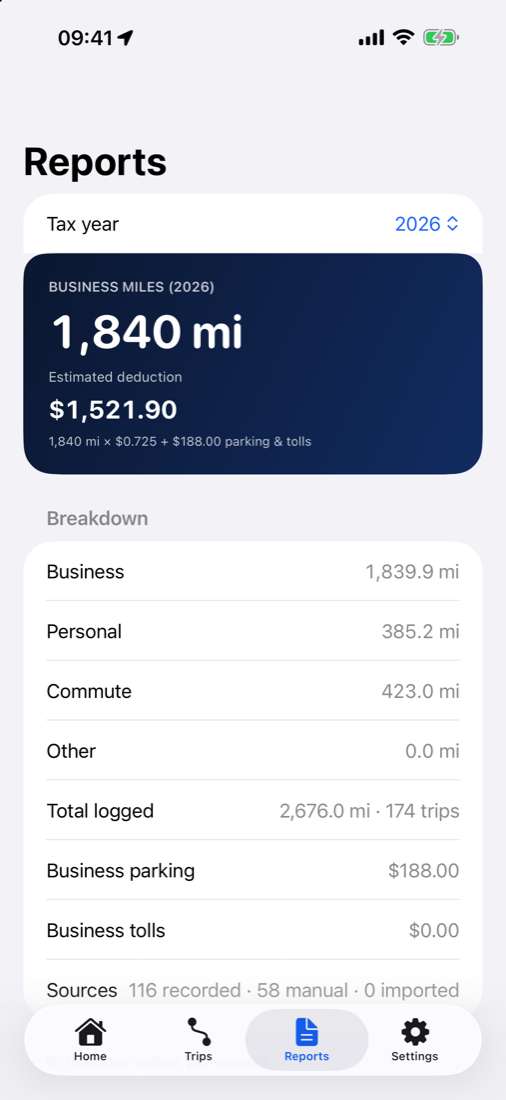
At tax time, or any time, open Reports, choose the tax year and export.
- Tax-preparer PDF with date, destination, purpose, miles and deduction
- Full PDF, mileage CSV and audit-history CSV
Reliable tracking
Tracking health tips
iOS can delay or stop background location to save power. If drives go missing, open Settings → Tracking health in MileCerta: it shows what’s wrong and links to the fix. These settings matter most.
Location: Always + Precise
iPhone Settings → Privacy & Security → Location Services → MileCerta → Always, with Precise Location on. “While Using” can’t record drives in the background.
Motion & Fitness
Settings → Privacy & Security → Motion & Fitness. Allowing MileCerta helps it recognise drives sooner and more reliably.
Low Power Mode off
Low Power Mode reduces background activity, which can delay or miss drives. Turn it off when you’ll be driving for work.
Don’t force-quit
Swiping MileCerta away in the app switcher can pause detection until you open the app again. Leave it in the background.
Background App Refresh
Keep Background App Refresh on for MileCerta (Settings → General → Background App Refresh).
Add missed trips
No detection is perfect. Add a missed drive manually; it’s labelled user-entered in your log and reports.
Still missing drives? Contact support and include what Tracking health shows.
Ready to try it on your next drive?
Join the TestFlight beta.